

Table of Contents
- Why Organising Your DAZ Studio Library Matters
- What You’ll Need Before Starting
- Step 1: Audit Your Current Library Structure
- Step 2: Create a Logical DAZ Studio Content Directory Manager System
- Step 3: Implement Consistent Naming Conventions
- How to Speed Up Slow DAZ Studio Scene Loading Through Library Organisation
- Common Mistakes to Avoid When Organising Your Library
- Frequently Asked Questions
Last Updated: September 30, 2026
Why Organising Your DAZ Studio Library Matters
A disorganised DAZ Studio library doesn’t just waste time, it actively slows down your creative work. When you’re managing thousands of assets across multiple marketplaces and folders, finding what you need becomes a hunt rather than a workflow. Scene loading bogs down, preview rendering crawls, and you lose momentum precisely when you need it most.
The real cost isn’t just the minutes spent searching. It’s the friction that kills creative flow. You stop thinking about your art and start thinking about where that specific character outfit ended up. That’s the problem most guides sidestep entirely.
At Matronius, we provide specialised workflow plugins designed to streamline the creative process for 3D and digital artists. We understand the challenges artists face when managing sprawling asset collections.
This guide walks through a practical system to organise daz studio library effectively. You’ll audit what you have, establish a logical structure, implement naming conventions that actually stick, and understand how proper organisation directly improves scene performance. The goal isn’t perfection, it’s a system that scales with your work.
What You’ll Need Before Starting
Before you begin reorganising, gather these essentials. You’ll need access to your DAZ Studio installation directory and the ability to browse your file system directly. Most of your content lives in the Documents folder under DAZ Studio Library or a custom content directory you’ve specified.
Have external storage ready if your library is particularly large. Many professionals use dedicated external drives specifically for DAZ assets, which makes backup and migration straightforward. You’ll also want a text editor open, something simple like Notepad or your system’s native text application, where you can draft your naming conventions before implementing them across hundreds of files.
Finally, close DAZ Studio during the reorganisation process. Moving files whilst the application is running can cause indexing conflicts and corrupt your library database. Give yourself uninterrupted time to work through this systematically.
Step 1: Audit Your Current Library Structure
Start by understanding what you actually have. Open your DAZ Studio content directory and spend time examining your existing folder structure. Don’t change anything yet, just observe. Look for patterns in how content is currently organised: by character type, by marketplace source, by purchase date, or perhaps a chaotic mix of all three.
Professional 3D artist’s workspace with desktop computer displaying multiple file folders and asset libraries on screen, scattered external hard drives and organisation materials on the desk, natural window lighting
Create a simple inventory. Count how many top-level folders you have, what categories dominate your collection, and where duplicate or orphaned files sit. Many artists discover they’ve downloaded the same asset twice from different sources without realising it. This audit phase typically takes 30-60 minutes depending on library size, but it’s essential groundwork.
Pay particular attention to your most-used assets. Which character types do you work with regularly? Which clothing, props, or environments appear in most projects? These high-frequency items should be easiest to access in your new system. The audit reveals your actual workflow, not your theoretical one.
Step 2: Create a Logical DAZ Studio Content Directory Manager System
Your folder hierarchy should mirror how you actually work, not how you think you should work. A common mistake is creating an overly complex system that looks elegant in theory but breaks down in practice when you’re under deadline pressure.
Start with broad categories that reflect your creative practice. Most artists use something like this structure:
- Characters (subdivided by type: male, female, child, creature)
- Clothing & Accessories (subdivided by garment type: tops, bottoms, footwear, jewellery)
- Environments & Props (subdivided by setting: interior, exterior, fantasy, sci-fi)
- Hair & Morphs
- Materials & Textures
- Poses & Animations
Each top-level folder should contain no more than 8-12 subfolders. If you find yourself creating deeply nested hierarchies with 5+ levels, you’ve gone too deep. The goal is to locate any asset within two or three clicks.
Within each subfolder, organise by source or creator when relevant. For example, under “Characters > Female” you might have “Genesis 3”, “Genesis 8”, “Victoria 4” as subfolders. This approach keeps character bases separate, which matters because rigging and morphs differ significantly between generations.
Consider your workflow frequency. Assets you use weekly should be shallower in the hierarchy than those you touch monthly. Your most-used character base shouldn’t require navigating through five folders to find it.
Step 3: Implement Consistent Naming Conventions
Naming conventions matter far more than most artists realise. A consistent system lets you find files by search when browsing fails, and it prevents confusion when collaborating or migrating files between systems.
Establish a naming pattern and commit to it. A practical approach uses this structure: [Category]_[Subcategory]_[Specific Item]_[Version]. For example: Clothing_Tops_VictorianBlouse_v2 or Character_Female_Scientist_Genesis8_v1.
Use underscores instead of spaces. Spaces can cause problems in file paths and make command-line operations difficult if you ever need to batch-process your library. Avoid special characters entirely, stick to alphanumeric characters and underscores.
Include version numbers for items you modify or update. When you customise a character or adjust morphs, append _v2 or _modified. This prevents confusion between your original download and your personalised version. Many artists save multiple iterations of custom characters, and clear versioning prevents loading the wrong one mid-project.
Keep filenames reasonably short, aim for under 60 characters. Long filenames become unwieldy in file browsers and can cause path-length issues on some systems. Be descriptive but concise: Character_Male_Warrior_v3 beats MyCustomModifiedWarriorCharacterBaseWithSpecialMorphsAndCustomSkin_v3.
How to Speed Up Slow DAZ Studio Scene Loading Through Library Organisation
Scene loading speed improves dramatically when you organise daz studio library properly, because DAZ Studio spends less time indexing and searching for assets. A bloated, disorganised library forces the application to parse thousands of poorly-named files every time you launch it or refresh your content browser.
When files are logically grouped and consistently named, DAZ Studio’s content manager can index your library more efficiently. The application doesn’t have to search through irrelevant folders or guess whether two similarly-named files are duplicates. This is particularly noticeable when you’re working with multiple character bases or massive clothing collections.
Beyond organisation, a few additional practices accelerate loading. Remove duplicate files ruthlessly. If you’ve downloaded the same outfit from multiple sources, keep only one copy and delete the rest. Many artists maintain a “duplicates” folder temporarily whilst they verify what’s actually redundant, then purge it once they’re certain.
Consider separating your most-used assets into a “working library” folder that loads separately from your archive. This approach lets DAZ Studio index only the content you actively use, whilst keeping your complete collection intact for occasional projects. It’s particularly effective if you work across multiple character types but focus on one or two regularly.
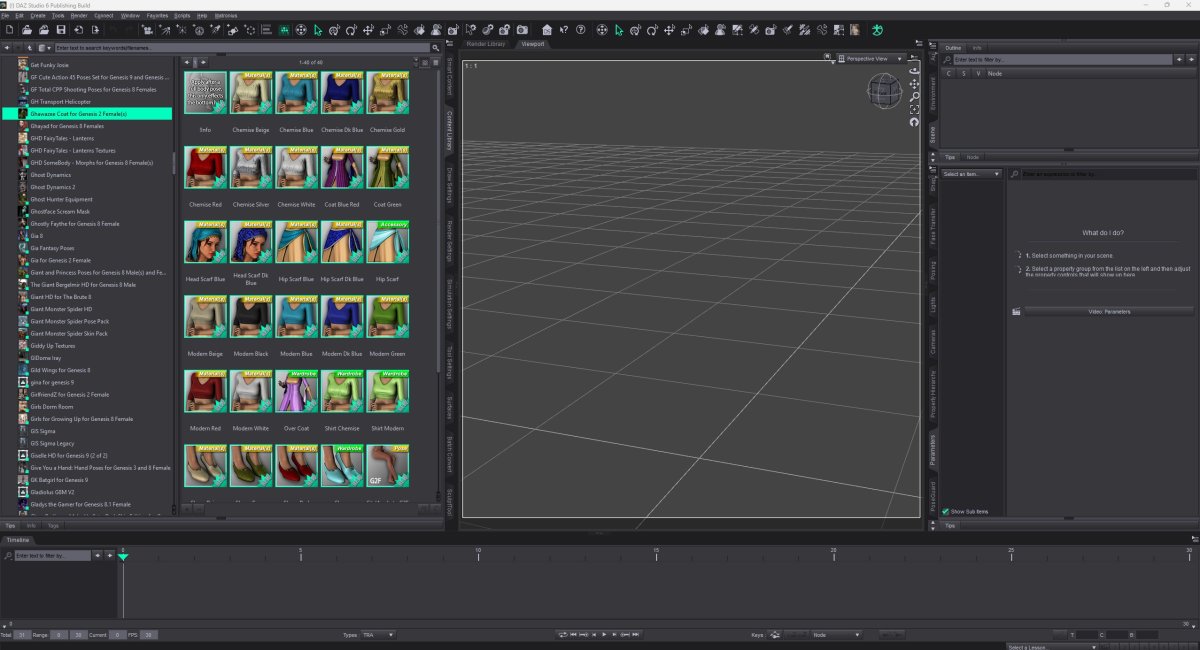
Finally, periodically rebuild your library database. In DAZ Studio, navigate to Edit > Preferences > Content Directory Manager and rescan your library. This forces the application to reindex everything and can resolve indexing corruption that accumulates over time.
Common Mistakes to Avoid When Organising Your Library
The biggest mistake is attempting perfection on the first pass. Artists often spend weeks designing an elaborate folder system, only to abandon it three months later because it doesn’t match their actual workflow. Start simple. You can refine the system as you work with it.
Don’t organise by purchase date or marketplace. Grouping assets by “Renderosity purchases” or “2024 acquisitions” creates a system that becomes meaningless as your library grows. Organise by function, what the asset does and how you use it, not when you acquired it.
Avoid mixing organisational systems. Some artists create one section organised by character type, another by clothing category, and a third by creator. This inconsistency means you’ll never know where to look for something. Pick one system and apply it consistently across your entire library.
Don’t neglect your metadata. DAZ Studio allows you to tag assets with keywords and descriptions. Use this feature. When you download a new asset, spend 30 seconds adding relevant tags. This investment pays off immediately when you’re searching for “Victorian clothing” and get instant results instead of browsing through dozens of folders.
Many artists keep their entire library on their main drive, which slows system performance and makes backups problematic. If your library exceeds 500GB, seriously consider external storage. Modern USB 3.1 drives are fast enough for DAZ Studio work, and the performance improvement is noticeable.
Finally, don’t skip the audit phase. Artists who jump straight to reorganisation often miss opportunities to clean up duplicates, delete unused assets, or identify patterns in their actual workflow. The audit takes time, but it’s the foundation for everything that follows.
Organising your DAZ Studio library transforms your creative process from frustrating to fluid. The system you build today becomes invisible tomorrow, you’ll stop thinking about where files live and start focusing entirely on your art.
Frequently Asked Questions
What is the best folder structure for organising a DAZ Studio library?
A logical folder hierarchy works best: start with broad categories (Characters, Clothing, Environments, Props), then subdivide by type or creator. Use a consistent naming convention within each folder, such as including the creator name and asset type in the filename. This structure prevents duplicate downloads, speeds up file searches, and makes it easier to locate specific assets when building scenes. Avoid deeply nested folders that require excessive clicking.
How does a DAZ Studio content directory manager help organise my assets?
A content directory manager centralises your asset management by scanning and cataloguing all your DAZ Studio files in one place. It tracks file locations, prevents duplicate installations, and allows you to view assets without loading them individually. This eliminates the need to manually browse multiple folders and significantly reduces the time spent searching for specific content across scattered marketplace purchases.
Can I move my DAZ Studio library to a new drive without breaking file paths?
Yes, but you must update DAZ Studio’s content directory settings after the move. In DAZ Studio, go to Edit > Preferences > Directories, then update the paths to point to your new drive location. Ensure all subfolders maintain their original structure during the transfer. If you use a content directory manager or installer tool, it can automate this process and verify that all paths resolve correctly before and after the move.
Why is my DAZ Studio taking so long to load scenes after installing many assets?
Slow scene loading typically occurs when DAZ Studio scans large, disorganised libraries during startup. To speed up slow DAZ Studio scene loading, consolidate duplicate files, remove unused assets, and organise your library into clearly named folders. Disable content directories you’re not actively using in your Preferences, and consider using a content manager that indexes your library efficiently rather than forcing DAZ Studio to rescan everything each time you launch.