Last Updated: November 21, 2026
Quick Summary
The most useful plugins for 3D workflows handle repetitive setup work: installing and organising assets, transferring rigs and materials between programs, and managing large libraries. Choose each tool to match a specific task, and test it on one simple scene before using it on a deadline project.
- Asset installers should place files in the correct folders and allow clean uninstalls.
- Our Blender-to-DAZ plugin supports custom characters, not Genesis 8 or Genesis 9 figures.
- Check rigs, armatures and materials after any transfer before animating or rendering.
- Add tags through Content DB Editor, since tags in filenames do not survive library moves.
- Confirm supported software versions, because updates can break bridge plugins overnight.
Table of Contents
- Why Plugins Matter for Simplifying 3D Workflows
- Daz Studio Workflow Plugins for Asset Installation and Organisation
- Blender Workflow Automation Add-ons for Rig and Shader Transfer
- 3D Asset Management Tools for Large Libraries
- Plugins for Connecting 3D Software Across the Pipeline
- Choosing the Right Plugins for Your Own Pipeline
- Start Small: Testing Your First Workflow Plugin
- Frequently Asked Questions
Why Plugins Matter for Simplifying 3D Workflows
Most of a 3D artist’s time goes to setup, not creation. Installing assets, moving rigs between programs and fixing broken materials eat hours that could go to actual design work. Well-chosen plugins for simplifying 3D workflows cut that overhead down to a few clicks.
At Matronius, we build tools for this exact problem. Our one-click plugins are designed to handle the repetitive technical steps, so artists can spend more time on the work that matters. The rest of this guide covers where plugins help most and how to pick the right ones for your pipeline.
Daz Studio Workflow Plugins for Asset Installation and Organisation
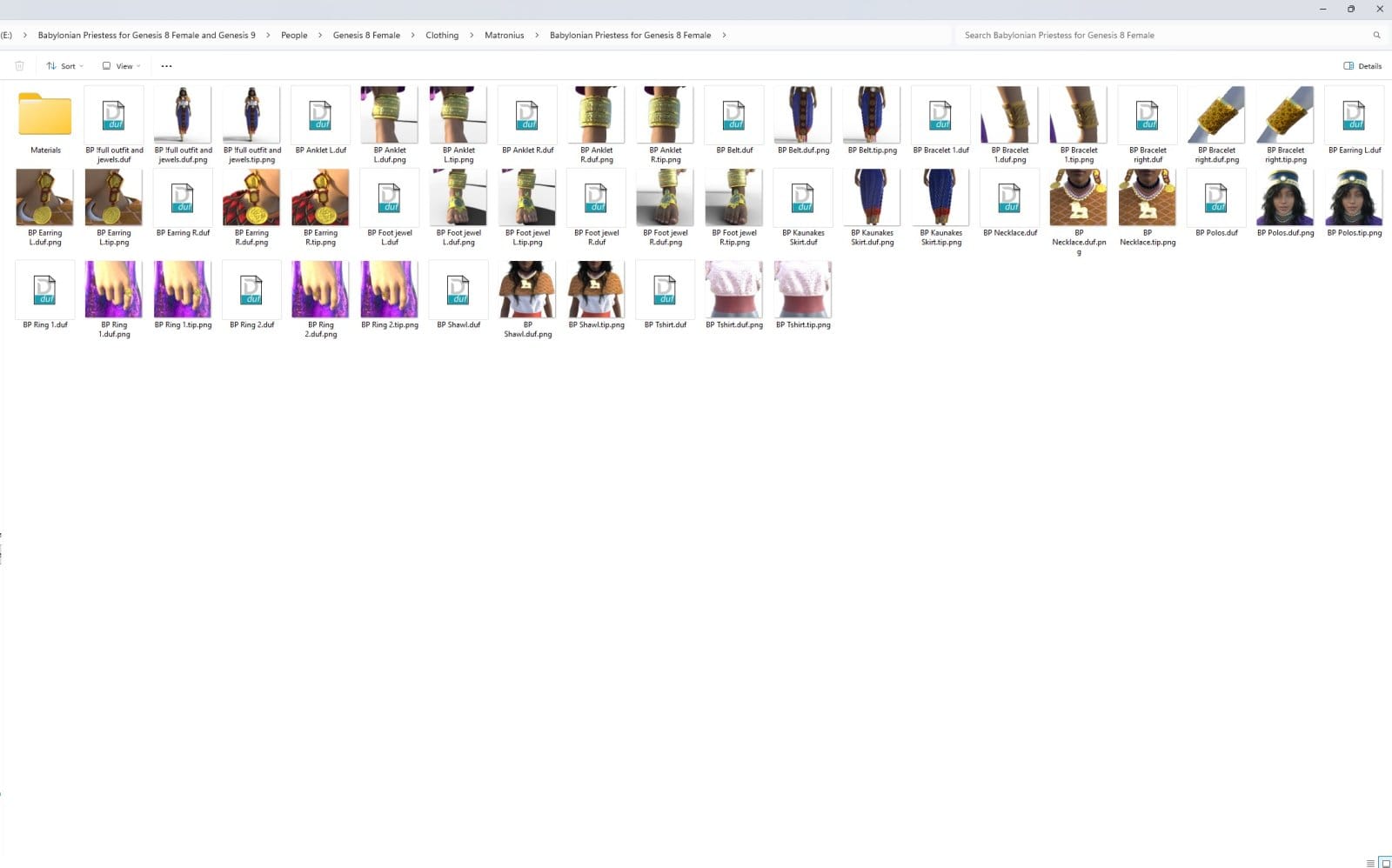
Daz Studio libraries grow fast. Each marketplace purchase adds more folders, and before long finding the right file takes longer than building the scene.
A good installer does three things well:
- Places files in the correct content folders automatically
- Keeps a record of what is installed and where
- Lets you uninstall cleanly without leaving broken references behind
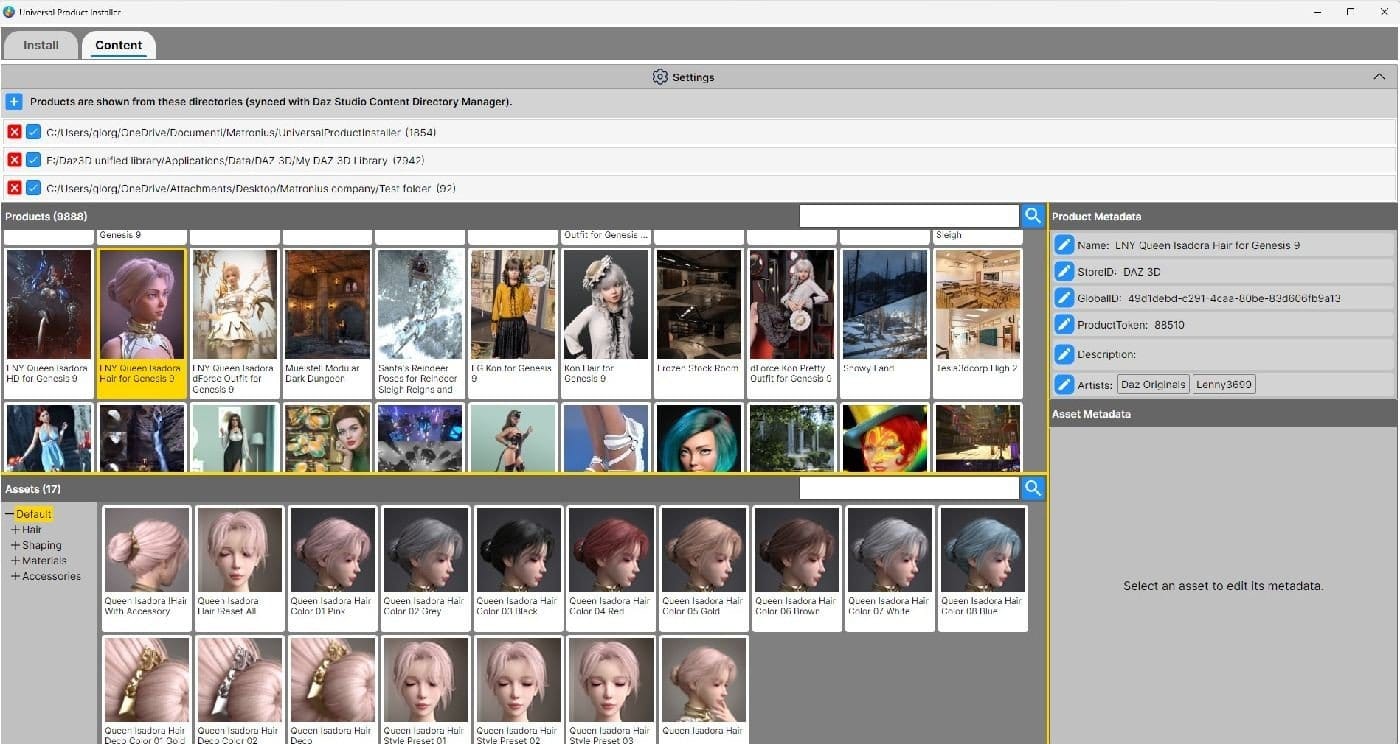
Our Universal Product Installer for third-party DAZ products installs content from many sources in one place.
Watch out: Deleting assets in Explorer or Finder leaves orphaned references in Daz Studio. Remove content through your install manager instead.
Handling Scattered Libraries From Multiple Marketplaces
Artists who buy from several marketplaces often end up with the same content in different formats and folder layouts. The fix is a single installer that reads each source and places files consistently.
Before you commit to any installer, check:
- Which marketplaces and file formats it supports
- Whether it handles your existing library or only new purchases
- How it deals with duplicate files
Test with one product first. If the install and removal both work cleanly, scale up.
Blender Workflow Automation Add-ons for Rig and Shader Transfer
Moving a character between Daz Studio and Blender is one of the most time-consuming steps in many pipelines. Manual rig fixes and shader rebuilding can take hours per character.
Our Blender-to-DAZ plugin provides a one-click bridge that carries rigs, armatures and materials across. Note that it supports custom characters, not Genesis 8 or Genesis 9 figures.
Checking Rigs, Armatures and Materials After Transfer
Every transfer needs a short check before you start animating or rendering:
- Pose the figure in a few extreme positions and watch joint movement.
- Confirm that materials display correctly in your render engine.
- Check that the armature hierarchy matches what you expect.
- Render one test frame before committing to a full scene.
Most transfer problems come from a mismatch rather than a bug, such as the wrong figure generation or the wrong render engine. Matching these settings first solves most issues.
3D Asset Management Tools for Large Libraries
Asset management is where most Daz Studio libraries quietly fall apart.
Comparing the Main Approaches
There is no single dominant asset manager for Daz Studio, so the practical move is to pick the layer that matches your problem:
Approach | Best for | Trade-off |
|---|---|---|
Daz Studio CMS + Smart Content | Day-to-day browsing of a single library | Slows noticeably once the database passes tens of thousands of items; needs periodic maintenance |
A dedicated installer such as our Universal Product Installer for third-party DAZ products | Content bought outside Daz Connect, from multiple marketplaces | Only as good as its marketplace coverage; test with one product before bulk installing |
External DAM tools (e.g. Eagle, Adobe Bridge) | Visual reference, mood boards, cross-project search | They index previews, not Daz metadata, so they cannot drive Smart Content |
Plain folder taxonomy with strict naming | Small libraries, shared team drives | No search beyond filenames; renaming later across thousands of files is painful |
A Naming and Tagging Scheme That Survives Growth
For tagging, use the CMS metadata rather than filenames. Open Content DB Editor, select the asset and add consistent tags for figure generation, clothing type and render engine. Tags added here survive library moves; tags baked into filenames do not. Consistent tags also make it easier to trace an asset from figure generation through to physical finishing, where Pewgilist can help connect the workflow to print cleanup.
Version Tracking and Update Hygiene
If you are still setting up your first library, our guide on seven ways to organise 3D assets as a beginner covers the folder conventions that scale. Set the naming system before you install your hundredth product, retrofitting it later across a large library is the single most tedious maintenance job in Daz Studio.
Plugins for Connecting 3D Software Across the Pipeline
The useful question is not “which bridge is best” but “what survives the trip”, because the answer differs by direction and by tool.
What Actually Transfers, and What Does Not
A bridge plugin is only as good as the data it preserves. Across the common Daz Studio handoffs, expect the following:
The Main Bridge Options Compared
Bridge | Direction | What it carries | Main limitation |
|---|---|---|---|
Daz to Blender Bridge (D2B) | Daz Studio → Blender | Figure geometry, rig, basic materials | One-directional; shader conversion is approximate |
Our Blender-to-DAZ plugin | Blender → Daz Studio | Rigs, armatures and materials for custom characters | Supports custom characters only, not Genesis 8 or Genesis 9 figures |
GoZ | Daz Studio ↔ ZBrush | Geometry with vertex order preserved | Requires matching subdivision levels; morphs need Morph Loader Pro on return |
FBX / OBJ export | Any direction | Geometry, UVs, basic weights | No material fidelity, no Daz-specific metadata |
Our Photoshop-to-Blender import | Photoshop → Blender | Layer fidelity and Z-order mapping | Layer structure only; not a full material bridge |
Our Blender-to-DAZ plugin supports custom characters, not Genesis 8 or Genesis 9 figures.
Checking a Transfer Before You Commit
Every handoff needs a short verification pass before you animate or render:
- Render one test frame in the target engine before committing to a full scene.
Version Compatibility and Maintenance
Software updates break bridges. A new Blender release can invalidate an add-on overnight, and Daz Studio point releases occasionally change the FBX export dialogue. Before you rely on any bridge in a deadline project:
- Confirm the plugin’s supported Blender and Daz Studio versions against your installed builds.
Choosing the Right Plugins for Your Own Pipeline
No single plugin fits every workflow. Start by listing your most frequent manual tasks. Then match each task to a tool.
Use this checklist before you buy:
- Confirm the exact software names and versions you use
- Check whether the figure generation and render engine match your work
- Read the limitations, not just the features
- Confirm whether updates are included
- Check whether you can install on the number of machines you need
- Check licence terms for personal versus commercial use
Reading the limits matters most. A plugin that clearly states what it does not support will save you more time than one with vague claims.
Start Small: Testing Your First Workflow Plugin
Do not roll a new plugin into a deadline project on day one. Test it on a simple scene first.
- Pick one character or one prop you already know well.
- Run the full workflow from start to finish.
- Compare the result with your manual method.
- Note how long each step takes.
If the test works, expand to a larger project.
Matronius builds plugins for artists who want less setup and more creating. If your pipeline has a bottleneck we have not covered here, explore our tools and see what fits your workflow.
Frequently Asked Questions
What are the best plugins for streamlining 3D workflows?
The most useful plugins for 3D workflows fall into three groups: asset installers that organise DAZ Studio content from several marketplaces, bridges that carry rigs and materials between DAZ Studio and Blender, and connectors that move geometry and layers between 3D software and Photoshop. Matronius offers a one-click Blender-to-DAZ Studio plugin and a universal installer for third-party DAZ products. The right choice depends on where your pipeline loses the most time, so start by listing the manual steps you repeat most often before comparing options.
Are workflow plugins compatible with DAZ Studio, Blender and Photoshop?
Compatibility depends on the specific plugin and the versions you run. Before buying, check the exact software and version numbers, such as Blender and DAZ Studio releases, and confirm which figure generation and render engine the product supports. Matronius’s Blender-to-DAZ Studio plugin supports custom characters but not Genesis 8 or Genesis 9 figures, so read the stated limits before you purchase. Updates matter too: ask whether a seller keeps pace with new software releases, because a tool that worked last month can break after an update.
How can I choose the right plugins for a 3D production pipeline?
Start with the bottleneck, not the feature list. If installing content takes hours, look at asset installers first. If rigs break when you move between Blender and DAZ Studio, look at bridge tools and test them on a simple character. Check whether the seller answers support questions and how quickly, and confirm whether your licence covers commercial use and how many machines you can install on. A tool that solves one clear problem in your pipeline usually beats a bundle you only partly use.
Which plugins help manage and install 3D assets?
Universal installers are the main option for managing third-party DAZ content. Matronius offers a DAZ Universal Product Installer that installs content from many marketplaces in one place. Deleting files directly in Explorer or Finder can leave orphaned references, so uninstalling through an install manager is cleaner. Test any installer on a small batch of assets first to confirm it handles the folder structures you actually use.
