

Table of Contents
- Why Massive DAZ Studio Libraries Slow You Down
- Quick Comparison: Tools That Actually Improve Load Times
- What a DAZ Studio Content Library Manager Needs to Do
- Fixing DAZ Studio Slow Scene Loading Before You Buy Anything
- DAZ Studio Load Times: SSD vs HDD in Practice
- DAZ Studio Content Directory Organization That Scales Past 10,000 Assets
- Mistakes That Keep Your Library Slow
- Conclusion
- Frequently Asked Questions
Last Updated: 9 October 2026
Why Massive DAZ Studio Libraries Slow You Down
The single biggest cause of slow load times in DAZ Studio libraries is not your graphics card. It is how the Content Database indexes and scans your asset folders every time you open the Smart Content pane or load a scene. This guide from Matronius breaks down which tools genuinely help, and which problems you should fix before spending anything.
Here is the part most guides get wrong: a slow library is usually a database and directory problem, not a hardware problem. Adding an SSD helps, but a badly organised content directory will still crawl. Below, we explain exactly what to fix first, then how to choose a DAZ Studio content library manager that actually reduces load times.
Quick Comparison: Tools That Actually Improve Load Times
No single tool fixes a slow library. The table below maps each common bottleneck to the fix that resolves it, so you can see where software helps and where it does not.
Problem | Best Fix | Type | Impact on Load Times |
|---|---|---|---|
Scattered install folders | Daz Studio Universal Product installer | Software | High (stops duplicate scans) |
Bloated Content Database | Rebuild + prune | Manual | High |
Slow drive reads | SSD migration | Hardware | Medium-High |
Deep nested subfolders | Flat directory structure | Manual | Medium |
Broken metadata | Metadata re-import | Software | Medium |
Uncompressed textures | Texture compression | Manual | Low-Medium |
Our Daz Studio Universal Product Installer (UPI) handles the first row: it places third-party products into a single, predictable directory tree instead of scattering them across marketplace-specific folders.
What a DAZ Studio Content Library Manager Needs to Do
A DAZ Studio content library manager is software that installs, indexes, and organizes your runtime assets so the Content Database can find them without repeated full-drive scans. The best ones do three things: install to a consistent structure, keep metadata intact, and avoid duplicating files.
When you are weighing up options, check for these capabilities:
- Writes to a single, user-defined content directory rather than vendor defaults
- Preserves metadata and product tags after installation
- Handles products from multiple marketplaces without folder conflicts
- Does not force a full database rebuild on every install
- Lets you uninstall cleanly, without orphaned texture or geometry files
Fixing DAZ Studio Slow Scene Loading Before You Buy Anything
DAZ Studio slow scene loading is often a database problem, not a tooling problem. Rebuild the Content Database before you spend money on anything. In most cases this alone cuts load times noticeably.
Work through this order:
- Open Content Library > Options menu > Content Database Maintenance and run Rebuild.
- Remove duplicate content directories under Edit > Preferences > Content Library > Content Directory Manager.
- Delete unused or broken product folders, then rebuild again.
- Test load a heavy scene and time it.
If load times are still bad after a clean rebuild, the bottleneck is hardware or directory depth, not your tools. That is when a manager and an SSD migration start to pay off.
DAZ Studio Load Times: SSD vs HDD in Practice
Moving your runtime to an SSD is the most reliable single upgrade for DAZ Studio load times SSD vs HDD comparisons. An SSD reads scattered texture and geometry files far faster than a mechanical drive, and large libraries are exactly the workload where that gap shows.
What matters in practice:
- Keep the runtime and the Content Database on the same SSD, not split across drives.
- Reserve the SSD for active projects; archive old products to an HDD.
- Never run the database on a network drive, as latency kills indexing speed.
An SSD does not fix a disorganized directory. Pair it with a clean folder structure for the best result.
DAZ Studio Content Directory Organization That Scales Past 10,000 Assets
Past roughly 10,000 assets, directory depth becomes the limiting factor. Keep your folder tree shallow and predictable, and the Content Database will index it far faster.
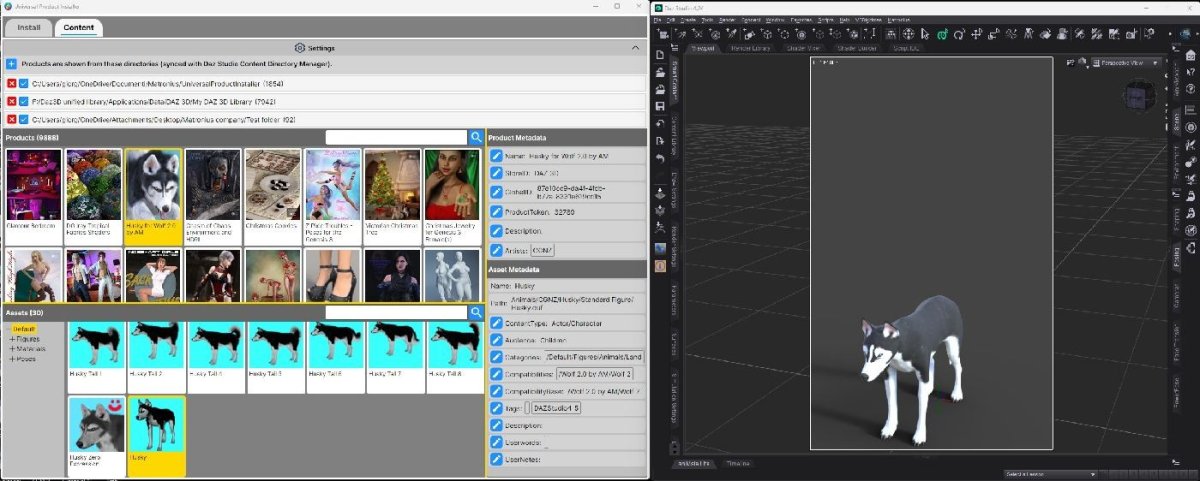
A structure that scales looks like this:
- One root content directory, with category folders directly beneath it
- Category folders such as Figures, Clothing, Props, Materials
- No more than three levels deep for any asset
- Vendor name only in the product folder, never in the path above it
If you would rather not reorganize by hand, browse our dForce clothing library and Matronius 3D assets.
Mistakes That Keep Your Library Slow
The most damaging mistake is installing every product into its own vendor folder and never pruning. Over time this fragments the database and multiplies scan work.
Other common errors:
- Running multiple content directories that overlap, causing duplicate entries
- Leaving orphaned texture files after uninstalling products
- Ignoring metadata, so Smart Content cannot filter efficiently
- Keeping the database on a different drive to the runtime
- Never rebuilding after large batch installs
Conclusion
Managing a library past 10,000 assets is a discipline, not a purchase. If scattered installs and duplicate folders are slowing you down, Matronius provides one-click tools that install third-party content into a consistent structure and bridge Blender to DAZ Studio. Explore our products to see how our Universal Product Installer and Blender to Daz Studio bridge fit your workflow, and join 500+ artists who have already simplified theirs.
Frequently Asked Questions
What is the best tool for managing a large DAZ Studio content library?
There is no single winner. The most effective setup pairs a dedicated library manager for metadata, duplicate detection and category rebuilding with a universal installer for third-party products. Matronius provides one-click automation tools, and you can explore the range on matronius.com. Whichever tool you choose, confirm it handles multiple content directories and reads your existing metadata before you commit.
Does installing DAZ content on an SSD improve load times?
Yes, and the gain is largest on first load. A SATA SSD typically reads several times faster than a mechanical drive, and an NVMe drive is faster again. Once assets are cached in RAM, repeat loads of the same scene are quick on any drive. The practical approach is to keep the base figures, morphs and shaders you use daily on the SSD, and archive rarely touched products on cheaper mechanical storage.
How do I manage multiple content directories in DAZ Studio?
Open **Edit > Preferences > Content Library > Content Directory Manager** and add each mapped folder as both a DAZ Studio Formats and a Poser Formats path. Keep the folder names identical across drives, for example D:/DAZ 3D/My Library and E:/DAZ 3D/My Library, so saved scenes resolve correctly if a drive letter changes. Avoid nesting libraries inside each other, as this forces a full rescan of both.
Can I reduce the size of my DAZ Studio library without deleting assets?
You can reclaim a lot of space without losing anything you use. Delete duplicate installers and ZIP archives once the product is installed, remove unused render presets, and clear the Studio log and temporary cache folders. For assets you want to keep but rarely use, move them to an archive drive and remove that path from Content Directory Manager so it is not scanned at startup.