

Table of Contents
- Why Import Photoshop Layers Into Blender?
- What You’ll Need Before You Start
- Step-by-Step PSD to Blender Workflow
- Blender Image as Plane Import Explained
- Fixing Layer Alignment and Z-Order Issues
- Converting 2D Layers to 3D Meshes
- Automating the Process with Add-ons
- Common Mistakes to Avoid
- Frequently Asked Questions
Last Updated: September 29, 2026
Why Import Photoshop Layers Into Blender?
Learning to import photoshop layers into blender changes how you build textures and concept art. Instead of flattening your work in Photoshop and losing every layer, you bring the full PSD structure into Blender. Each layer stays separate, editable, and mapped to its own plane.
That matters more than most guides admit. Concept artists often paint 20 to 40 layers for a single character or environment. Flattening that file destroys the ability to tweak a shadow, swap a color, or isolate a highlight later.
Matronius provides specialized workflow plugins designed to streamline the creative process for 3D and digital artists. These solutions empower artists to simplify third-party content installation, bridge complex rigs, and maintain layer fidelity, ultimately saving valuable time and effort.
So why bother? Three reasons:
- You keep every layer editable inside Blender
- You control depth and stacking without repainting
- You cut the back-and-forth between two programs
Below, we’ll walk through the full process, from export settings to fixing alignment and converting flat layers into real 3D geometry.
What You’ll Need Before You Start
Before you begin, you need four things: Photoshop (or any PSD editor), Blender 4.x, a layered PSD file, and the “Import Images as Planes” add-on enabled in Blender.
That last item trips people up constantly. The add-on ships with Blender but stays off by default. Turn it on under Edit > Preferences > Add-ons, then search for “Images as Planes.”
Here’s your checklist:
- Blender 4.x installed and updated
- Photoshop or Krita for PSD editing
- A PSD file with named, organized layers
- “Import Images as Planes” add-on enabled
- Layers exported as individual PNGs (with transparency)
- A consistent pixel resolution across all layers
Keep your canvas size consistent. If your base layer is 2048×2048, every other layer should match. Mismatched sizes cause scale and alignment problems later, and those are painful to fix.
Step-by-Step PSD to Blender Workflow
The full PSD to Blender workflow has two halves: getting clean files out of Photoshop, then importing them into Blender with the right settings. Each half has its own traps.
A 3D artist’s hands on a keyboard with a monitor showing a Photoshop layer panel on one side and a Blender viewport on the other, in a dim studio workspace
Exporting Layers from Photoshop
Photoshop cannot hand Blender a layered PSD directly, so you export each layer as a separate PNG. Go to File > Export > Layers to Files. Choose PNG-24 with transparency enabled.
A few rules keep this clean:
- Use PNG, never JPG (JPG kills the alpha channel)
- Keep transparency on so edges stay soft
- Match every layer to the same pixel dimensions
- Export to one folder so batch import stays simple
Raster graphics carry pixel data, so resolution matters. If you plan to zoom in close on your model, export at a higher resolution than you think you need.
Importing into Blender
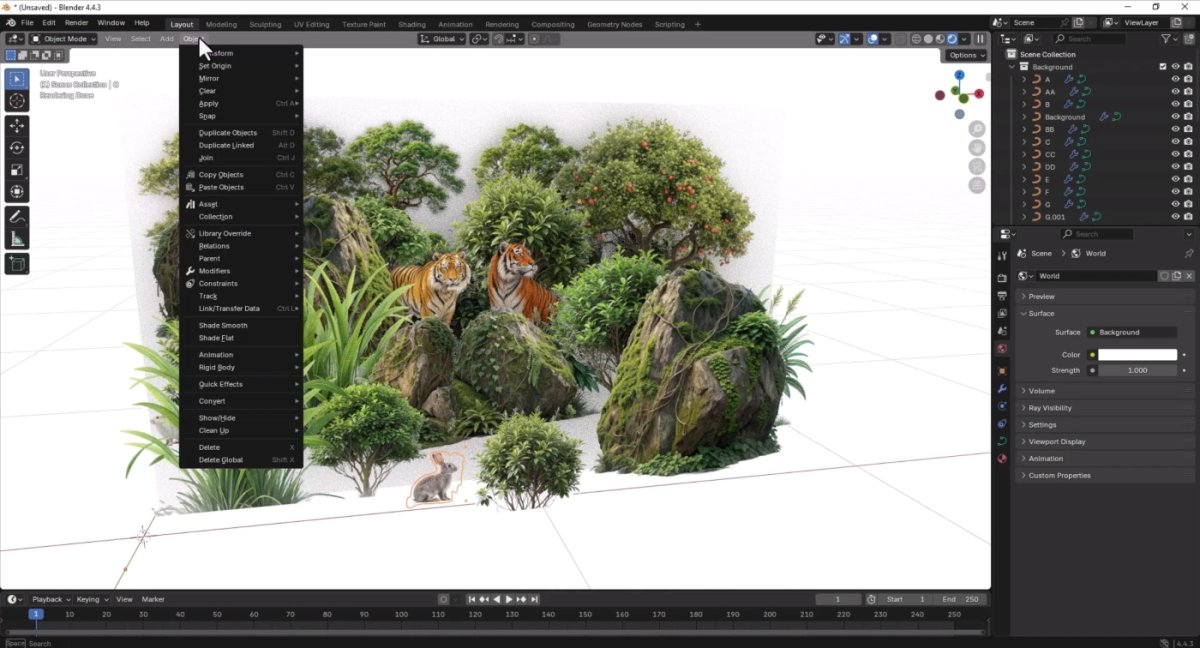
In Blender, go to File > Import > Images as Planes. Select all your exported PNGs at once. The importer places each one on its own plane.
Set these options in the import panel:
- Shading: choose “Emission” for flat 2D look, or “Principled BSDF” if you want lighting to affect it
- Size Mode: use “Absolute” to keep consistent scale
- Align: set to “Z-Axis” so planes face the camera
- Offset Planes: enable this to stack layers with a small gap
That offset setting is the difference between a clean stack and a mess of overlapping planes.
Blender Image as Plane Import Explained
The Blender image as plane import feature places any image on a flat plane in your scene, ready for texturing or reference. It is the core tool behind every PSD to Blender workflow.
This add-on does more than drop a picture into your viewport. It creates a mesh plane, applies the image as a texture, and sets up basic UV mapping automatically. That means you skip manual setup and get straight to arranging layers.
Two things to know about how it handles images:
- It reads the alpha channel, so transparent PNGs show through correctly
- It maps the image to UV coordinates spanning the full plane by default
For simple layer stacking, that default is fine. For anything more complex, like a texture atlas or a normal map, you’ll want to adjust the UV layout yourself.
Fixing Layer Alignment and Z-Order Issues
Layer alignment and Z-order problems are the number one complaint from artists importing PSDs. The fix usually comes down to three settings: origin point, plane offset, and coordinate system.
When you batch import, every plane lands at the world origin by default. That is actually good. It means all layers start stacked perfectly. The problems begin when you move one plane and lose the alignment.
Here’s how to keep everything locked:
- Set each plane’s origin point to the image center
- Use a small Z offset (0.001 to 0.01 units) between layers
- Parent all layer planes to a single empty for easy moving
- Lock rotation and scale on imported planes
Z-order decides which layer sits on top. In a 2D stack, the layer closest to the camera wins. Small offsets along the Z-axis create that depth without visible gaps.
If your layers look reversed, check the import order. Blender stacks planes in the order you select them, so import your base layer first.
Converting 2D Layers to 3D Meshes
Flat planes only get you so far. To make real 3D geometry from your layers, you convert them into meshes with actual depth.
The simplest method is mesh extrusion. Select a layer plane, enter Edit Mode, and extrude it along the Z-axis. This gives the layer thickness so it reads as a solid object, not a floating card.
For more control, use these approaches:
- Displacement: apply your layer as a depth map to push geometry outward
- Geometry nodes: instance objects based on layer data for complex setups
- Manual modeling: trace key shapes and build them by hand
A depth map turns grayscale values into height. Lighter pixels push out, darker pixels sink in. This is how you get relief detail from a flat painting.
Normal maps work differently. They fake surface detail through lighting rather than moving geometry. For 3D printing, you need real geometry, so displacement or extrusion is the way to go.
Automating the Process with Add-ons
Manual import works for one file. It falls apart when you have fifty. This is where scripting and add-ons earn their keep.
Blender’s Python API lets you batch import, rename, and stack layers with a single script. You can loop through a folder of PNGs, import each one, and apply consistent offset and alignment settings automatically.
What scripting handles well:
- Batch import of dozens of layers at once
- Consistent naming and parenting
- Automatic Z-offset for every plane
- Preserving layer hierarchy from your PSD
Preserving layer hierarchy is the hard part. Photoshop groups layers into folders. A good script reads that structure and rebuilds it in Blender’s outliner, so your “Face > Eyes > Highlights” structure survives the trip.
Matronius provides specialized workflow plugins designed to streamline the creative process for 3D and digital artists. Our tools focus on one-click pipeline steps so you spend time creating, not clicking through import dialogs.
Common Mistakes to Avoid
Most failed imports trace back to the same handful of errors. Knowing them upfront saves hours of troubleshooting.
The five mistakes that cause the most pain:
- Exporting as JPG – kills transparency and soft edges
- Mismatched resolutions – layers land at different scales and never line up
- Forgetting the add-on – the import menu option simply won’t appear
- Ignoring Z-offset – planes overlap and flicker in the viewport
- Not clearing rotation and scale – imported planes carry odd transforms that break later edits
That last one matters for anyone moving between 2D and 3D software. Always clear rotation and scale on imported objects before you start modeling. Blender applies transforms differently than Photoshop handles layer positions, and leftover values cause drift.
A common mistake is assuming the import is broken when the real issue is a stale transform. Select your planes, press Ctrl+A, and apply rotation and scale. That single step fixes a surprising number of alignment complaints.
For artists working across DAZ Studio, Blender, and Photoshop, a clean asset pipeline prevents most of these problems.
Frequently Asked Questions
Can I import PSD files directly into Blender?
Blender does not read PSD files natively. You must first export your layers from Photoshop as individual PNGs with transparency, then import those PNGs into Blender. Keep your layer names and order intact during export so the PSD to Blender workflow stays predictable. Some add-ons can automate this export and import sequence for you.
How do I keep layer transparency when moving assets from Photoshop to Blender?
Save each layer as a PNG-24 with alpha channel enabled. In Blender, connect the image’s alpha output to the Principled BSDF alpha input and set the material blend mode to Alpha Blend. This preserves transparency so your Photoshop layers look the same in the Blender viewport as they did in the original document.
What is the best way to use Photoshop textures in Blender?
Export your texture layers as separate PNG files at the resolution you need, then import them using the Blender image as plane import method or apply them directly to a mesh’s material. For layered textures, keep each layer as its own image node so you can adjust opacity and blending without re-exporting from Photoshop.
Are there plugins to automate the Photoshop to Blender workflow?
Yes. Several add-ons and scripts can batch-import PNG sequences, preserve layer hierarchy, and set up materials automatically. Matronius offers one-click pipeline tools that handle layer fidelity and Z-order mapping when bringing Photoshop layers into Blender, which saves time on repetitive setup tasks.