Quick Summary
The best way to organise your 3d assets as a beginner is to pick one central storage location on a dedicated drive, then sort everything with a consistent folder structure and naming convention. Keep textures beside their models, tag files for searching, and back up regularly so your library stays tidy as it grows.
- Use one dedicated drive with plenty of free space, not your system drive
- Copy a ready-made folder template with categories such as Characters, Clothing and Props
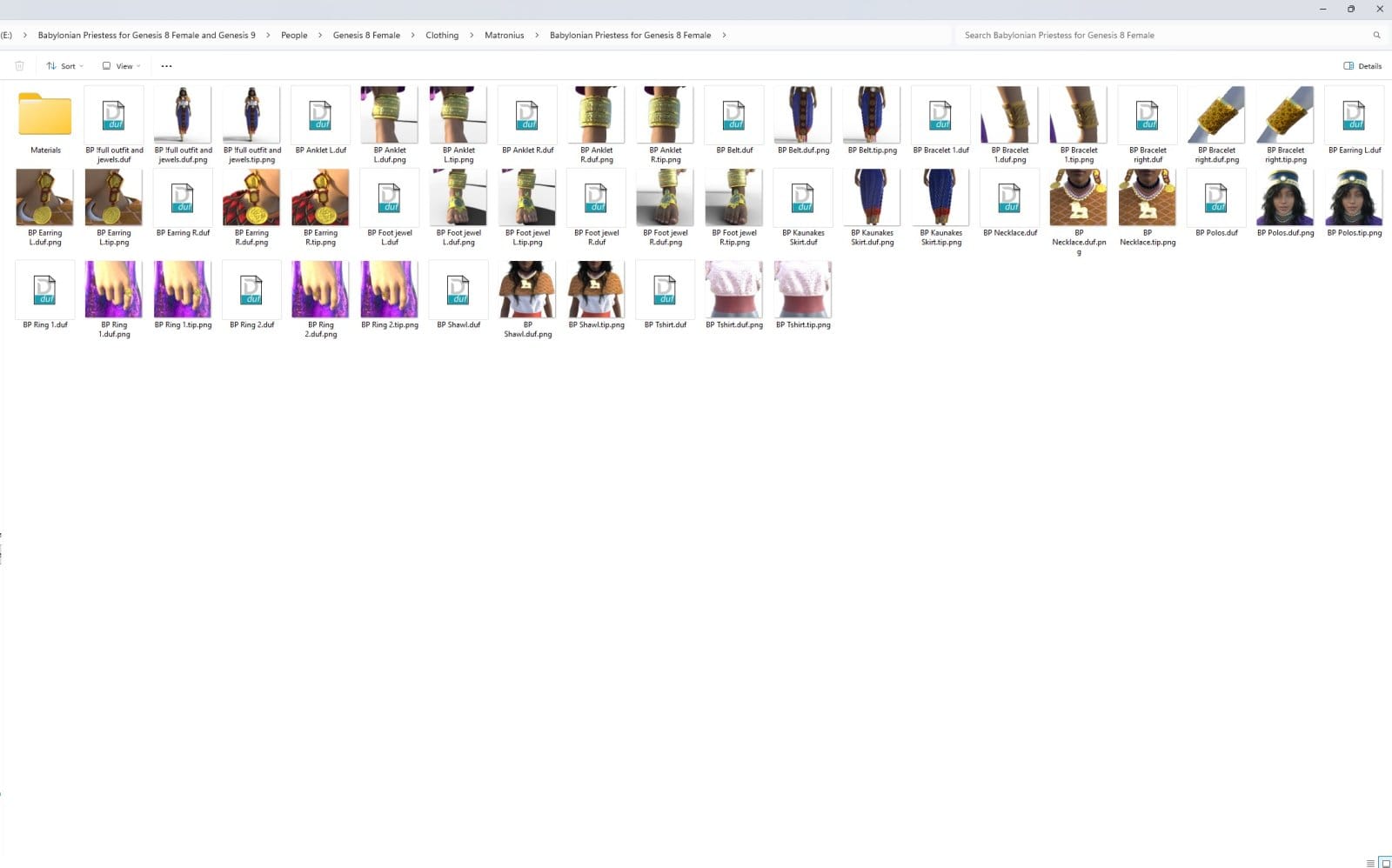
- Name files Creator_Name_Type_Version, for example Matronius_OutfitSet_Fantasy_v2.duf
- Keep each model’s texture folder beside the model it belongs to
- Back up the central storage location weekly, and remove content through your install manager
Table of Contents
- Choose One Central Storage Location for Your 3D Assets
- Build a Consistent 3D Asset Folder Structure
- Apply a Simple 3D Model Naming Convention
- Separate Models, Textures and Materials
- Organise Textures and Materials Alongside Their Models
- Tag and Catalogue Assets for Faster Retrieval
- Choose 3D Asset Management Software or Stay With Free Tools
- Back Up, Version and Maintain Your Library to Keep It Organised
- Frequently Asked Questions
7 Ways to Organise 3D Assets as a Beginner
Last Updated: November 17, 2026
Choose One Central Storage Location for Your 3D Assets
Pick one main drive or folder for all your 3D assets, and stick to it. Scattered files across desktops, downloads and old project folders are the fastest way to lose a model you bought last month. A single home for your library makes every later step easier.
Many beginners start by saving files wherever they happen to be working. That works for a week, then the problems pile up.
- Use a dedicated drive with plenty of free space, not your system drive
- Keep the location the same across every machine you use
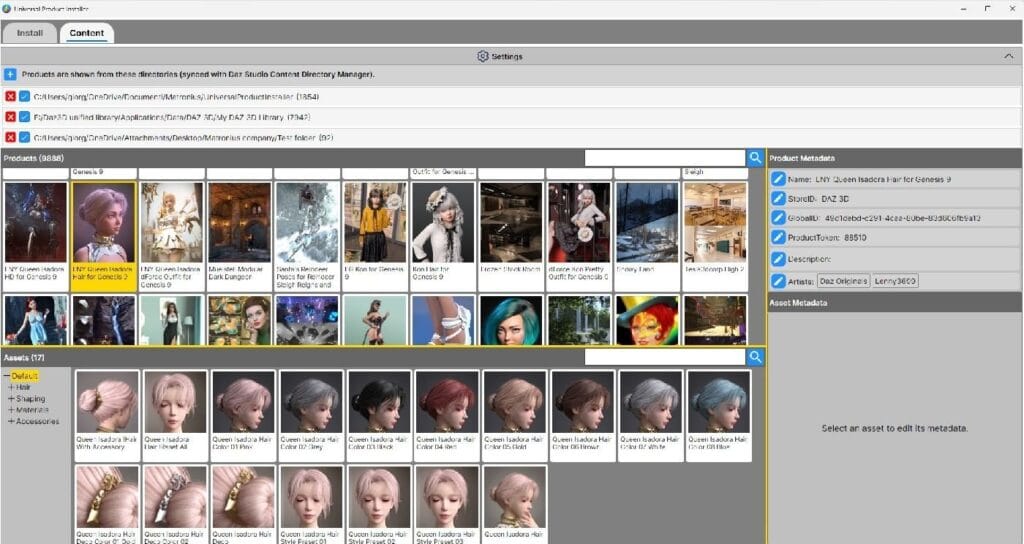
- Point your DAZ Studio Content Library and other tools at this one location
Setting up your central location before you install anything else saves hours of relinking later.
Build a Consistent 3D Asset Folder Structure
A folder structure is the set of folders and subfolders that sort your assets by type and project. Consistency matters more than perfection. Once you pick a layout, use it for every new download.
How to Fix Texture Stretching on Custom 3D Rigs
A Ready-to-Copy Beginner Folder Template
Copy this structure and rename the top folder to suit you:
3D Assets/ ├── Characters/ ├── Clothing/ ├── Hair/ ├── Props/ ├── Environments/ ├── Poses-Animation/ ├── Materials-Shaders/ ├── Textures/ ├── Projects/ └── _Archive/ Each category holds the models for that type. The Projects folder links to what you use in each scene, while _Archive holds anything you no longer need on the active drive.
Approach | Best For | Main Drawback |
|---|---|---|
Folder structure | Beginners, small libraries | Manual upkeep, easy to drift |
Database-driven management (asset manager) | Large or growing libraries | Learning curve, extra software |
Apply a Simple 3D Model Naming Convention
A naming convention keeps file names predictable so you can find things without opening every folder. Use the same order every time.
A simple formula works well: Creator_Name_Type_Version. For example: Matronius_OutfitSet_Fantasy_v2.duf
- Keep names lowercase or consistently capitalised
- Use underscores instead of spaces
- Add a version number when you change a file
- Avoid special characters that some software rejects
Separate Models, Textures and Materials
Keep the geometry (the model itself) apart from its texture maps and material settings. Mixing them causes missing-file errors when you move a project.
Watch out: moving a model without its texture folder is the most common cause of pink or missing materials. Keep the texture folder beside the model it belongs to.
Organise Textures and Materials Alongside Their Models
Store each model’s texture maps in a subfolder next to the model file, or in a matching folder under Textures. Either works, as long as you pick one and use it everywhere.
Using matching names for the model and its textures makes it obvious which maps belong together. Plan for this from the start, because retrofitting it across a large library takes time.
Tag and Catalogue Assets for Faster Retrieval
Folders tell you where a file lives. Tags and catalogue entries tell you what it is. Tags like “sci-fi”, “armour” or “Genesis 9” let you search by feel rather than by filename.
A simple spreadsheet listing each asset, its category and its tags also works well for a small library. For a deeper walkthrough of tagging, see our guide on how to tag 3D models for faster searching.
Choose 3D Asset Management Software or Stay With Free Tools
Free tools and your operating system’s file browser are enough for a small library. Dedicated asset management software becomes worth it when you have thousands of files, several marketplaces or frequent collaborators.
Free options cost nothing but require discipline. Paid tools automate tagging and previews but add another piece to learn. Start free, and move up only when searching becomes slow. If you are unsure whether your library has outgrown free tools, these seven signs show when a freelancer needs digital asset management.
Back Up, Version and Maintain Your Library to Keep It Organised
Organising is not a one-off job. Set a routine so your library stays tidy.
- Back up the central storage location to an external drive or cloud service every week
- Save a new version number rather than overwriting working files
- Delete true duplicates, and keep one copy of each model
- Review your folders monthly and move finished projects to _Archive
If your library has grown and DAZ Studio is loading slowly, the problem is often the content database rather than the files themselves. Our guide on fixing slow DAZ Studio library loading in seven steps covers the fixes in order. Once the library is organised and loading smoothly, the same care with files and specifications helps when you order a custom 3D print.
Watch out: deleting files in Explorer or Finder leaves broken references inside DAZ Studio. Remove content through your install manager instead, so the database stays clean.
Get your library under control with Matronius. Our tools handle third-party installs, rig transfers and Photoshop imports, so you spend less time sorting files and more time creating. Explore our workflow plugins today.
Frequently Asked Questions
What folder structure should I use for 3D projects?
A reliable starting point is one top-level library folder with a separate project folder for each job. Inside each project, keep subfolders for models, textures, maps, renders and exports. Keep a shared library folder for reusable assets you install from marketplaces, so they are not duplicated in every project. Stick to the same structure every time, because consistency matters more than the exact names you choose. Once the pattern is familiar, finding files becomes a matter of habit rather than searching.
What is the best way to name 3D files?
Use a predictable pattern that includes the asset name, a variant or version, and a short descriptor, such as character_hair_v02 or prop_chair_wood_v01. Avoid spaces and special characters, because they can cause problems across software and operating systems. Keep names lowercase and use underscores consistently. Write the pattern down once and apply it to every new file, including texture and map files, so related files sort together.
Should 3D assets be organised by project or by type?
Most beginners do best with a hybrid approach. Keep project folders for work that belongs to a specific job, and keep a separate library organised by asset type, such as characters, props, environments and clothing, for reusable content. This avoids duplicating the same model across projects while keeping each project self-contained. Pick the balance that matches how often you reuse assets, and review it once your library grows.
How do I back up a 3D asset library?
Keep at least two copies of your library, with one stored off the main drive, such as an external drive or a cloud sync folder. Run backups on a fixed schedule rather than ad hoc, and test restoring a few files now and then to confirm the backup works. Back up your folder structure and any asset management database or catalogue along with the files, so you can rebuild your organisation if something fails.
