Quick Summary
The most useful time-saving plugins for digital artists remove repetitive setup work, such as rebuilding perspective guides, moving layered files between programmes and installing third-party assets. Each one should replace a specific manual step and keep working after host software updates.
- Judge each plugin by how many minutes or hours it returns on a typical project.
- Check the software versions a plugin supports before you buy it.
- Set the perspective horizon first, then lock the guide to its own layer.
- A free plugin not updated for two or more host versions can fail silently.
- Install plugins through the official plugin manager, not by deleting files by hand.
Table of Contents
- What Makes a Plugin Actually Time-Saving for Digital Artists
- How We Selected and Tested These Five Plugins
- Top Photoshop Plugins for Artists Who Work Across Tools
- Perspective Plugin for Photoshop: Keeping Drawings Aligned
- Best Free Photoshop Plugins Compared With Paid Options
- Digital Art Workflow Automation: Matching Plugins to Your Pipeline
- Installing, Troubleshooting and Choosing the Right Plugin Setup
- Frequently Asked Questions
Five Plugins That Save Digital Artists Hours Each Week
Last Updated: November 24, 2026
What Makes a Plugin Actually Time-Saving for Digital Artists
Time-saving plugins for digital artists remove repetitive setup work so you can spend more hours on the actual creative job. At Matronius, we judge any plugin by one question: how many minutes or hours does it give back to you on a typical project? Strong time-saving plugins answer that question clearly.
Most artists lose time in predictable places. They hunt for files across folders, rebuild rigs that broke when a model moved between tools, and manually clean up layers after an import. A useful plugin removes one of those steps completely.
Watch out for plugins that only look fast in a demo. A tool that saves ten seconds once but breaks your scene on the next update is not saving you time.
Look for these signs of real time savings:
- One action replaces a multi-step manual process
- Files, rigs or layers arrive in your software intact
- Updates keep working when your host software changes
- You can explain the time saved in minutes per project
How We Selected and Tested These Five Plugins
We chose these five plugins by looking at the everyday bottlenecks digital artists report: asset installation, rig transfer, layer handling and file organisation. We then checked each tool against the software versions it claims to support.
Our selection focused on practical criteria:
- Clear purpose: Each plugin solves one specific bottleneck
- Compatibility: Support for the software it names
- Ongoing support: Regular updates and a working support channel
- Learning curve: How quickly you can get a first result
Compatibility is where many workflows break, so always check your software version, figure generation and render engine before you buy. A plugin that works on one setup can fail on another.
Top Photoshop Plugins for Artists Who Work Across Tools
Photoshop is often the starting point for concept art and texture work, and it rarely lives alone in a pipeline. Plugins that carry Photoshop layers into other tools save you from rebuilding a scene by hand.
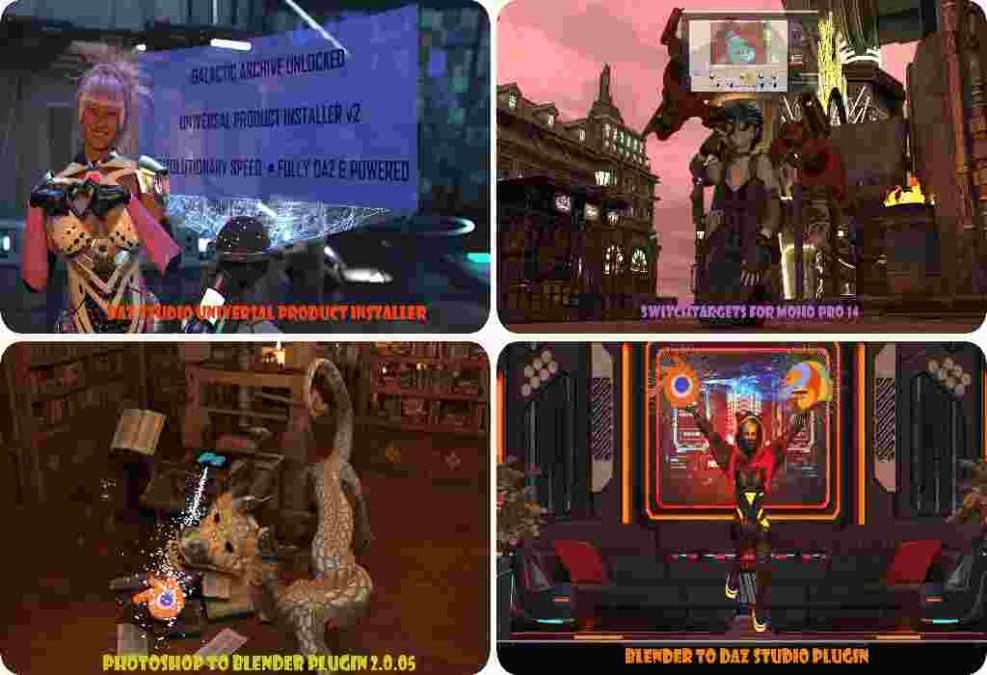
Our Photoshop to Blender plugin is built for this job. It imports layered PSD files into Blender and keeps layer order intact, so the Z-order you set in Photoshop still holds when the image reaches your 3D scene. You can explore the Photoshop to Blender bridge and see how it handles layered imports.
Best for: Concept artists who build scenes from layered Photoshop files.
Skip if: You only work inside Photoshop and never move files to another program.
To see how this fits a wider setup, read our guide to simplifying 3D workflows in practice.
Perspective Plugin for Photoshop: Keeping Drawings Aligned
Drawing at the right perspective takes time, and a wrong vanishing point can ruin an otherwise good sketch. Perspective assistance tools help you keep lines and objects aligned as you paint, which reduces the number of corrections you make later. Most round-ups stop at that sentence. This section goes further and treats perspective as a task with a repeatable setup, because that is where the time is actually saved. A repeatable perspective setup also depends on a workspace that keeps tools within reach, so creative desk tools can support the same steady rhythm beyond the canvas.
What a perspective plugin actually replaces
Without a guide, you rebuild the same construction lines by hand for every sketch: horizon, vanishing points, a grid, then a second grid for a different angle. A perspective plugin replaces that manual rebuild with a saved, adjustable guide that stays locked to your canvas or layer. The time saved is not the first grid; it is the tenth and twentieth time you reuse it.
A repeatable perspective setup
- Set the horizon line first, before any sketch marks. Everything else depends on it.
- Place your vanishing points on the horizon, then add a second and third point only if the scene needs them.
- Lock the guide to its own layer so painting and erasing do not disturb it.
- Set the grid density to match your brush size; a grid that is too fine becomes visual noise.
- Save the guide as a preset if the plugin supports it, so the next sketch starts from the same setup.
Where perspective and symmetry work together
Set your perspective grid first, then add symmetry for characters or architectural elements that repeat. The order matters: symmetry mirrors what is already there, so if the perspective is wrong, symmetry doubles the error. A common pattern is to use symmetry for the near half of a face or a repeating facade, then switch it off and finish the far side by eye against the perspective grid.
Trade-offs to weigh
- Multi-point grids are more accurate but slower to set up than a single-point guide.
- Guides locked to a layer survive painting but can be missed when you flatten or export.
- Some plugins only support straight-line perspective and do not handle curved or fisheye views.
Watch out: if a guide is locked to a layer and you flatten the file before export, the guide is baked into the image and cannot be removed later, so keep a layered master copy.
If you move layered work between Photoshop and a 3D scene, the same principle applies: keep the structure intact rather than rebuilding it. Our Photoshop to Blender plugin preserves layer order so the perspective you set in 2D still holds when the image reaches your scene.
Best Free Photoshop Plugins Compared With Paid Options
Free plugins are a sensible place to start, especially if you are testing a new workflow. They often cover basic tasks such as brush organisation, colour palette storage or simple guide overlays well enough for hobby work. The problem is that most round-ups list free tools without telling you what task each one removes, so you cannot judge whether it will actually save you time.
A clearer way to compare free and paid options is to sort them by the job they do, then check three things: what the plugin replaces, whether it still works on your host version, and who maintains it.
Task-based comparison of free and paid plugin types
- Brush and asset management: Free brush organisers and preset managers handle tagging and folder sorting for small libraries. Paid managers add search across multiple drives, duplicate detection and batch renaming, which matters once your library runs into thousands of brushes and alphas.
- Colour and palette work: Free palette generators and harmony tools cover basic swatch creation. Paid versions tend to add palette import from reference images, CMYK and PBR-safe conversion, and export to layered files.
- Perspective and symmetry guides: Free guide overlays are fine for a single vanishing point. Paid tools add multi-point grids, adjustable horizon lines and guides that stay locked to a layer while you paint.
- Layer and file transfer: Free scripts can flatten or export layers, but they rarely preserve layer order, blend modes or group structure. Paid bridges can keep the Z-order and layer hierarchy intact when a layered PSD moves into a 3D scene.
- Rig and asset installation: Free installers usually handle one format. Paid universal installers handle multiple content types and keep a manifest so you can uninstall cleanly.
Questions to ask before you choose
- Does the free version cover the one task you need, or does it stop at a trial limit?
- Who maintains the plugin, and how often is it updated against new host releases?
- Does it install through the host’s official plugin manager, or does it drop files by hand?
- What happens to your files and presets if the plugin stops working or is abandoned?
- Is there a documented support channel, or only a forum thread?
Watch out: a free plugin that has not been updated for two or more host versions is a common source of silent failures, because it may load without error but skip the step you rely on.
Paid plugins tend to offer more consistent updates and support, which matters when a host application changes. If you want to see how a paid bridge fits a wider setup, read our guide to simplifying 3D workflows in practice.
Digital Art Workflow Automation: Matching Plugins to Your Pipeline
The best plugin is the one that fits the order you already work in. Map your pipeline first, then add tools only where a step is slow or error-prone.
!A digital artist at a desk with a graphics tablet and a dual-monitor setup, one screen showing a layered Photoshop file, the other a 3D scene, with a notebook and coffee nearby
Here is a simple way to match tools to stages:
- Concept sketching: Perspective and symmetry guides
- Layer handling: Photoshop to Blender import
- Asset management: A universal installer for third-party content
- Rigging and character work: A Blender to DAZ Studio bridge
If you want to automate more of your process, our guide on automating a 3D artist pipeline walks through the steps. For lower-cost options, see our overview of affordable automation tools for freelance artists.
Installing, Troubleshooting and Choosing the Right Plugin Setup
Install plugins through your software’s official plugin manager where possible. Deleting files by hand can leave orphaned references that cause errors later.
If a plugin fails after an update, check these first:
- Confirm your software version is on the plugin’s supported list
- Restart the host application after installing
- Remove and reinstall through the install manager, not by hand
Match your setup to your work. A freelancer with a large third-party library needs an installer first. A concept artist moving layered files needs a bridge. Start with the bottleneck that costs you the most time, and add one tool at a time.
Pricing depends on the plugin and your licence type, so check the Matronius website for current prices and any available support options before you buy.
Frequently Asked Questions
What programs do most digital artists use?
Most digital artists work in Adobe Photoshop for painting and image editing, and many add a 3D application such as Blender or DAZ Studio for reference models, scenes and characters. Illustrators often add a vector tool for linework and a tablet-driven sketching app for early ideas. The right plugin depends on which of these programs sits at the centre of your daily work, so start by listing the tasks you repeat most and checking which application handles each one.
Are there free Photoshop plugins for digital artists?
Yes, a number of free Photoshop plugins cover common needs such as brush organisation, colour palette tools and simple perspective guides. Free tools are useful for testing a workflow, but check the version compatibility with your Photoshop release, the update history and whether support exists before relying on one for paid client work. Paid plugins usually offer ongoing updates and documentation, which matters when a software update breaks an older tool.
How do I choose a plugin for my digital art workflow?
Start with the task that costs you the most time, such as aligning perspective, managing hundreds of brushes or moving assets between Blender and Photoshop. Then check compatibility with your software version, read the installation notes, and confirm whether the vendor provides support. A plugin that removes one repetitive step every session will usually save more time than a large tool you only open occasionally.
How can Photoshop plugins save time in an art workflow?
Photoshop plugins save time by automating steps you would otherwise repeat by hand, such as placing perspective guides, organising brush libraries, sorting colour swatches or transferring layered files into another program. The saving comes from removing these repetitive actions, not from speeding up the drawing itself. Track how long a task takes before and after installing a tool to see whether the time saved justifies the cost.
