




Why I Built This
I work in both Photoshop and Blender. Photoshop for 2D illustration, compositing, concept work. Blender for 3D scenes, animation, and rendering. They’re both essential parts of the same workflow — but getting artwork from Photoshop into Blender was always the part that slowed everything down.
The standard method was painful. Export each layer as a PNG. Import them one by one into Blender. Manually position every element. Rename everything because the filenames were meaningless by the time they arrived. If you had a complex PSD with groups and sub-layers, the whole process could take an hour for a single file. And if you changed anything in Photoshop, you started over.
We looked for a proper import tool. There wasn’t one. So we built it.
The Photoshop to Blender Plugin reads your PSD file and brings the entire structure into Blender — layers, groups, names, positions, and shape layers — in one operation. Version 2.0.05 is the result of two years of refinement based on real artist feedback.
What It Does
The plugin runs from inside Blender. Point it at your PSD file, click Import, and your Photoshop document becomes a Blender scene.
Here is what transfers across:
Layer fidelity Every layer in your PSD arrives as a separate object in Blender, positioned exactly as it was in Photoshop. Pixel layers, adjustment layers, and shape layers all come through. Your layer order is preserved, so the Z-depth of your scene matches what you built in Photoshop.
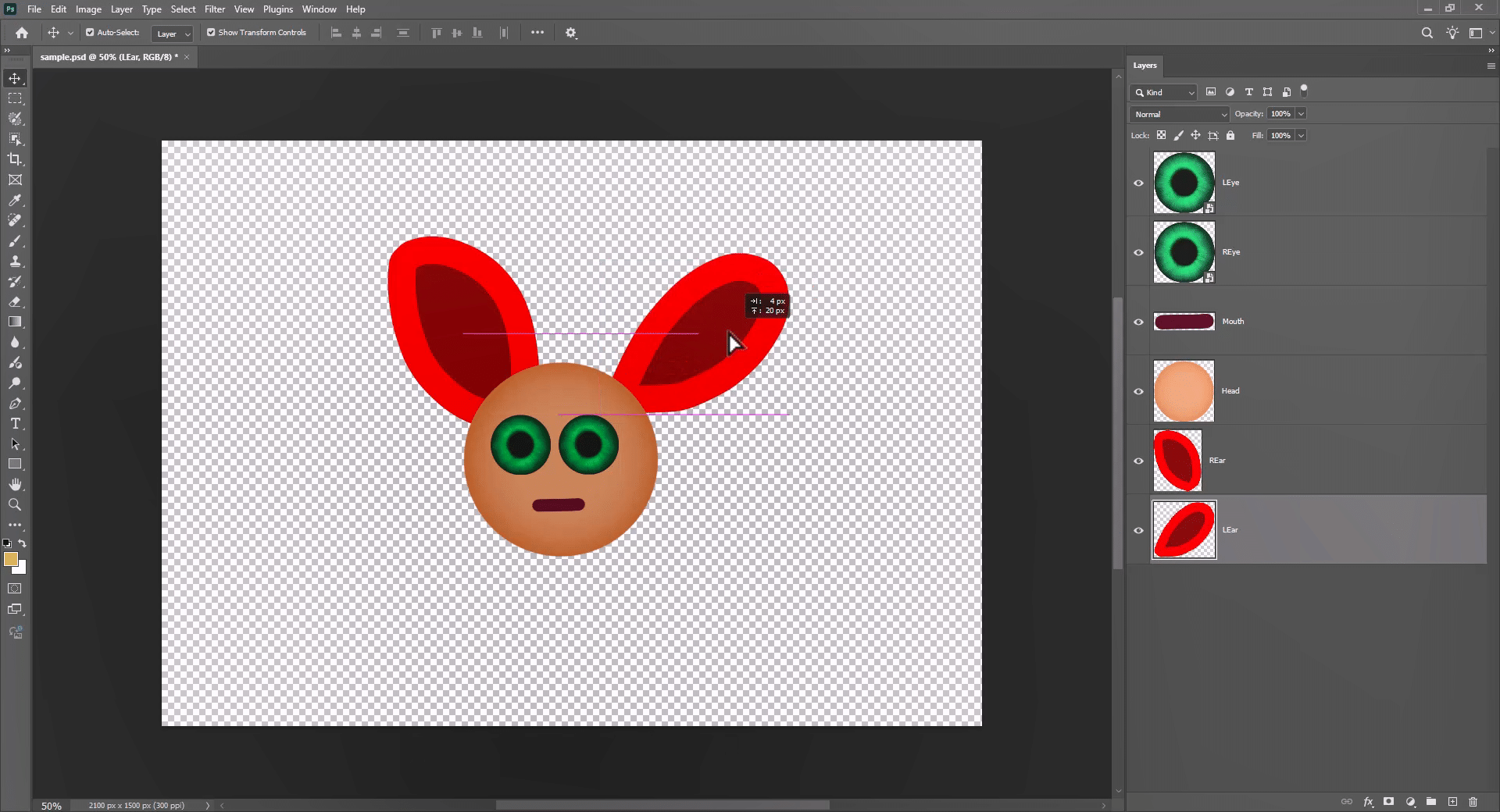
Layer groups and hierarchy Photoshop groups transfer as Blender collections. If you organised your PSD with folders — a Mouth group, an Eye group, a Background group — that structure arrives intact. You do not need to reorganise anything inside Blender.
Named layers Whatever you named your layers in Photoshop is what they are called in Blender. LEye becomes LEye. REar becomes REar. Layer 13 stays Layer 13. This matters more than it sounds: in a complex scene with dozens of objects, meaningful names are the difference between being able to work and spending twenty minutes hunting for the right object.
Shape layers Photoshop shape layers import as Blender geometry objects. The shapes are editable and correctly sized relative to your canvas. No rasterisation, no quality loss.
Canvas positioning Every layer imports at the correct position relative to your Photoshop canvas. If a character’s eyes are in the upper third of the frame in Photoshop, they are in the upper third of the frame in Blender. Nothing needs repositioning.
What You Can Do With It
Once your PSD is inside Blender, the layers are live objects. You can:
- Animate individual layers independently — mouth open, eyes blink, character moves
- Add depth and parallax to flat 2D illustrations
- Use Blender’s camera and lighting on Photoshop artwork
- Rig illustrated characters for 2D animation using Blender’s armature system
- Composite 2D and 3D elements in the same scene
- Render with Cycles or EEVEE at any resolution
This is particularly useful for motion graphics artists, 2D animators, game designers, and illustrators who want to bring Photoshop artwork into a 3D pipeline without starting from scratch.
Technical Requirements
- Photoshop: 2025 or later
- Blender: 3.6, 4.0, 4.1, 4.2, 4.3, 4.4 or later
- Operating System: Windows 10/11, macOS
What’s Included
- Photoshop to Blender Plugin v2.0.05
- Comprehensive PDF documentation
- Video tutorial series (YouTube)
- Email support with a 24-hour response time
- Free lifetime updates
- Access to the Matronius Discord community
- Multi-computer license (single user)
30-Day Performance Guarantee
If the plugin does not work as described due to a technical or compatibility issue, and we cannot resolve it within 48 hours, you get a full refund. No arguments.
I use this in my own workflow. If it does not work for you, I want to fix it — and if I cannot, I will not keep your money.
A Note from Me
This plugin exists because I needed it and nothing else did what it does. It has been through two years of updates based on feedback from the artists who use it every day. If something does not work the way you expect, email me at support@matronius.co.site or gio@matronius.com or gio@matroniussolutions.com and we will look at it ASAP.
Happy creating,
Matronius



&url=https://matronius.com/product/daz-studio-universal-product-installer-version-2-win-mac/&media=https://matronius.com/wp-content/uploads/2026/09/main-1024x1024.jpg)
&url=https://matronius.com/product/switchtargets-for-moho-pro-14-win-mac/&media=https://matronius.com/wp-content/uploads/2026/09/SwitchTargets-for-Moho-Pro-14-1024x1024.jpg)

Reviews
There are no reviews yet.